Sign-in for a command-line tool
Let a command-line tool sign in through the browser with a short code, keep its token in the system keychain and sign out cleanly.
This is an app part spec on Spekkr, published by kato. It is listed with the other specs. Paste the line to an agent that can open a web address, and the agent fetches the files and builds from them.
- Spec
kato/cli-sign-in- Version
- 0.1.2
- Published by
- kato
- Updated
- 15 Nov 2026
Build this spec
Build the spec at https://spekkr.com/kato/cli-sign-in/start.md.
Paste this to your AI agent. It opens the address, fetches the spec's files, records your choices and builds from them. Nothing to install, no account.
Published by kato.
What does the result look like?
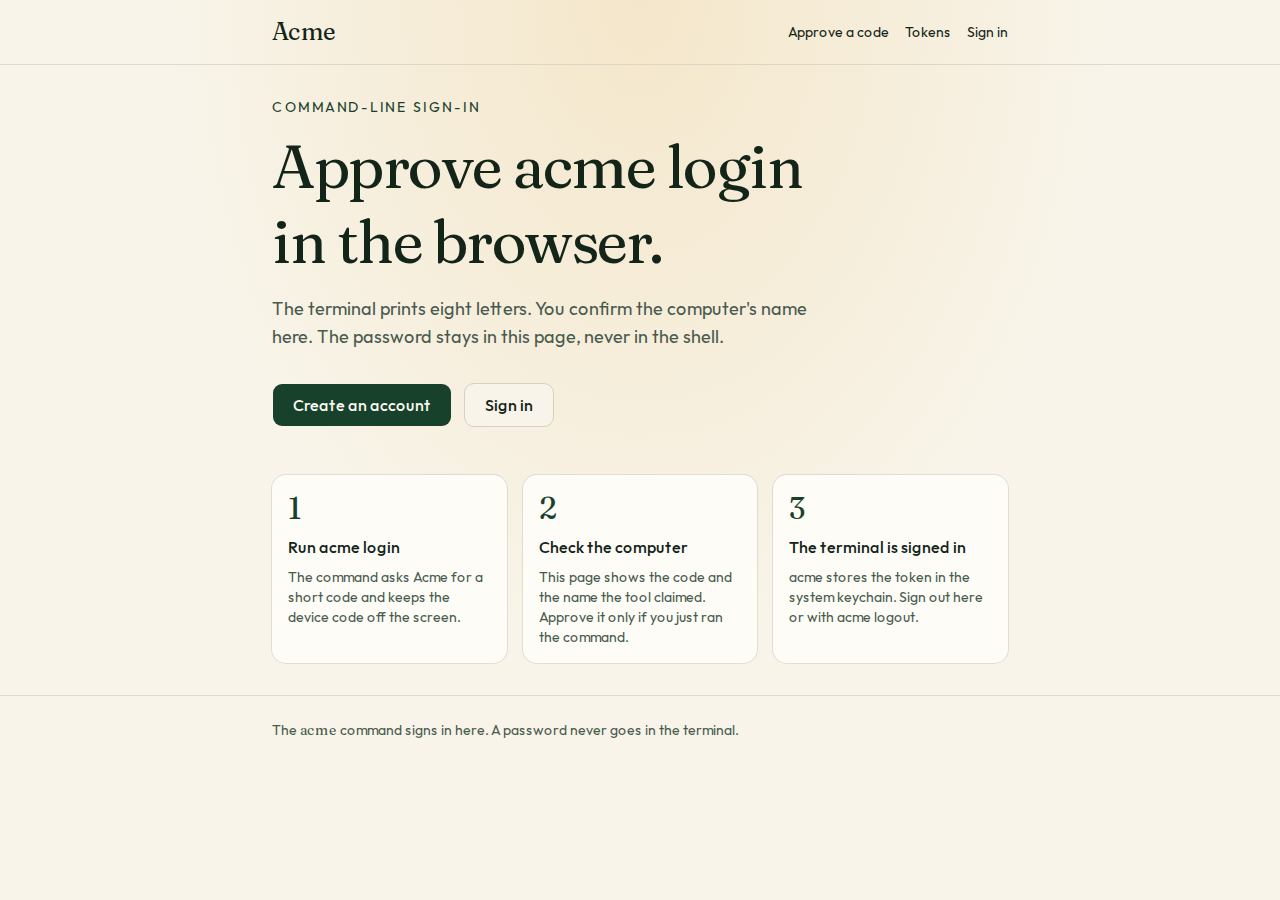
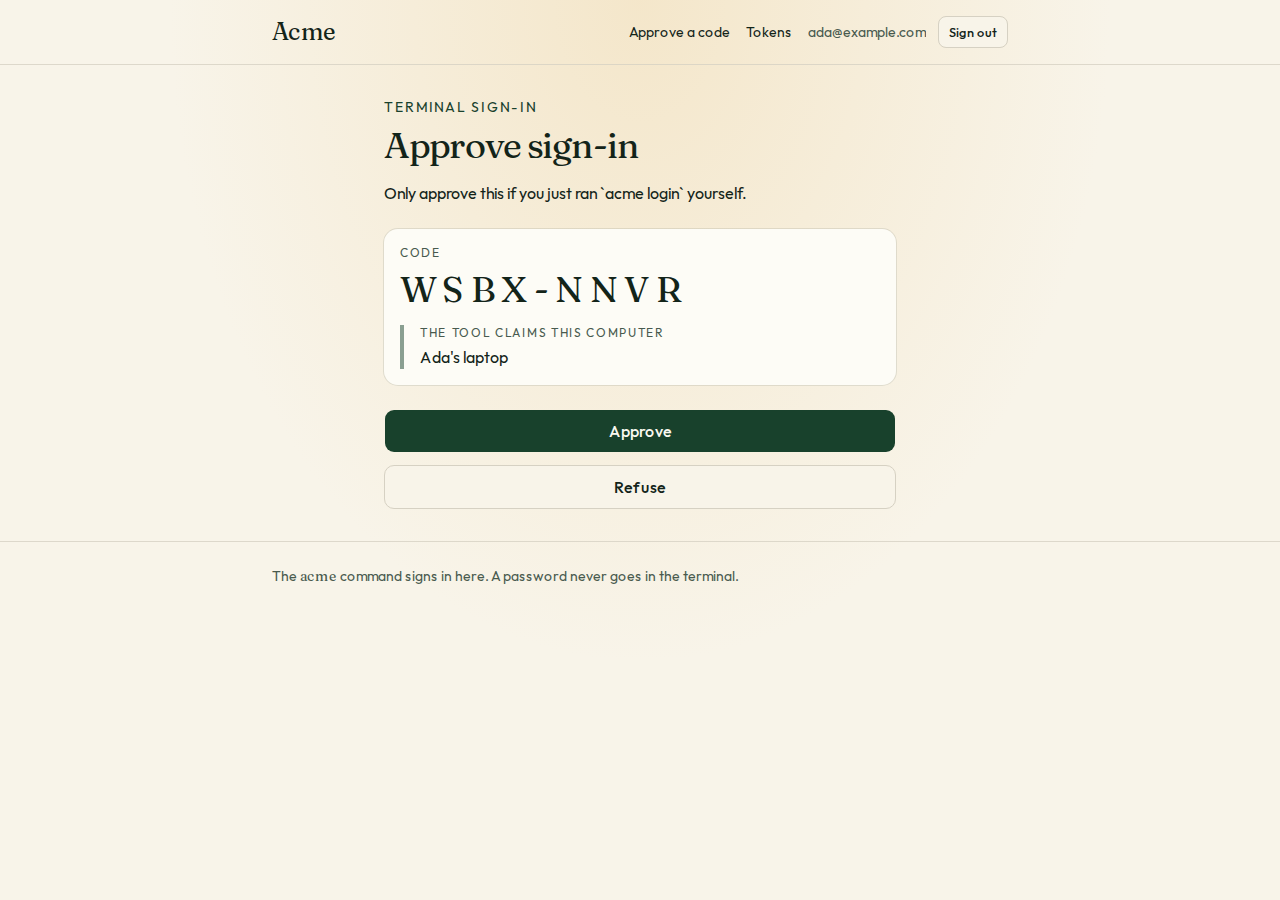
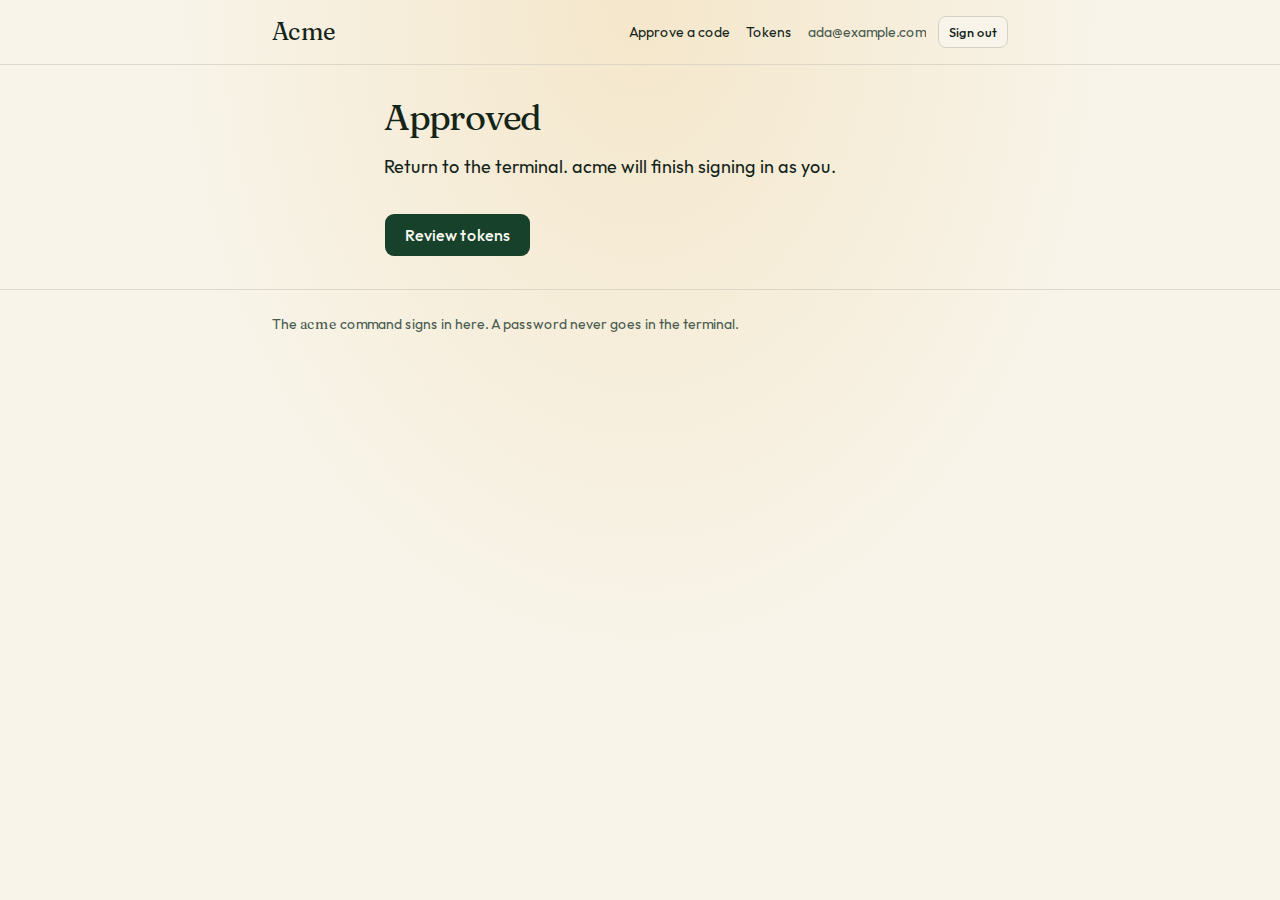
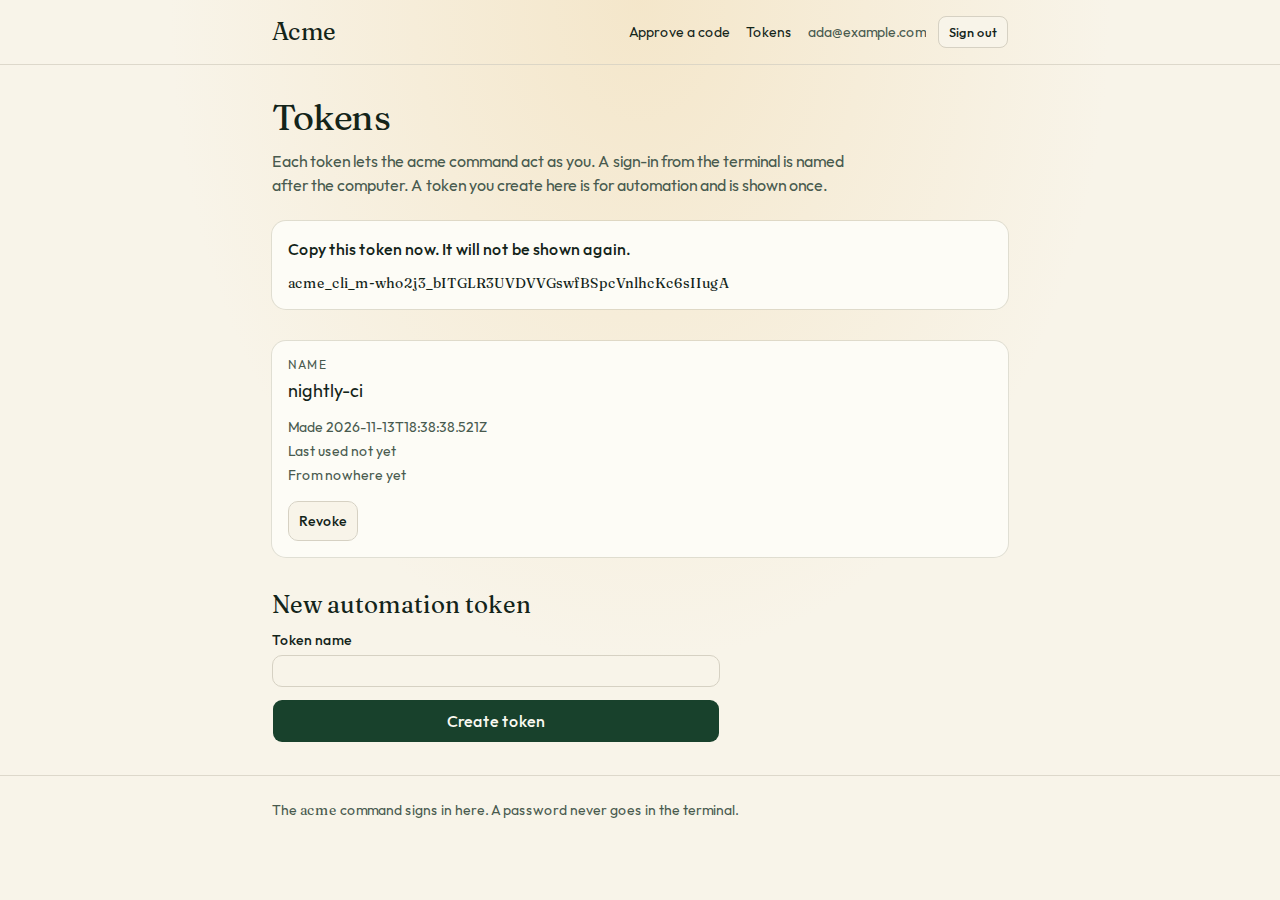
What can I customize?
Your choices go into the line you copy. Anything else is yours to edit, but it leaves the tested path.
What do I get?
-
spec.mdRequirements and acceptance criteria.Sign-in for a command-line tool
What this builds
Sign-in for a command-line tool that talks to a web app. The person types
acme login, approves a short code in their browser, and the tool is signed in. No password is ever typed into a terminal. The tool keeps its token in the system keychain and can be signed out from either side.Read
spekkr.inputs.jsonfirst. The command is calledcli_name; this file writesacme. A token laststoken_daysdays.open_browserchanges R1 andci_tokensdecides whether R7 exists.The spec has two halves: routes and pages added to the web app, and the commands in the tool. It needs the web app to know who is signed in. It does not build that.
Out of scope
- Sign-in for anything but the app's own tool. This is not an OAuth server for other people's programs.
- The rest of the tool's commands.
Requirements
Each requirement has an id. Tests name the id they cover.
R1. Start
acme loginasks the server for a device code and a user code, and prints the address to open and the user code.- The user code is 8 letters from
BCDFGHJKLMNPQRSTVWXZ, shown asXXXX-XXXX. The device code is 32 random bytes and is never shown. - Both stop working after 10 minutes.
- If
open_browseris on, the tool also tries to open the address with the code filled in. With--no-browser, or when there is no display, it only prints. - At most 10 sign-ins can be started from one IP address in 10 minutes.
Accept when: the printed address opens the approval page, and nothing printed or logged contains the device code.
R2. Approve
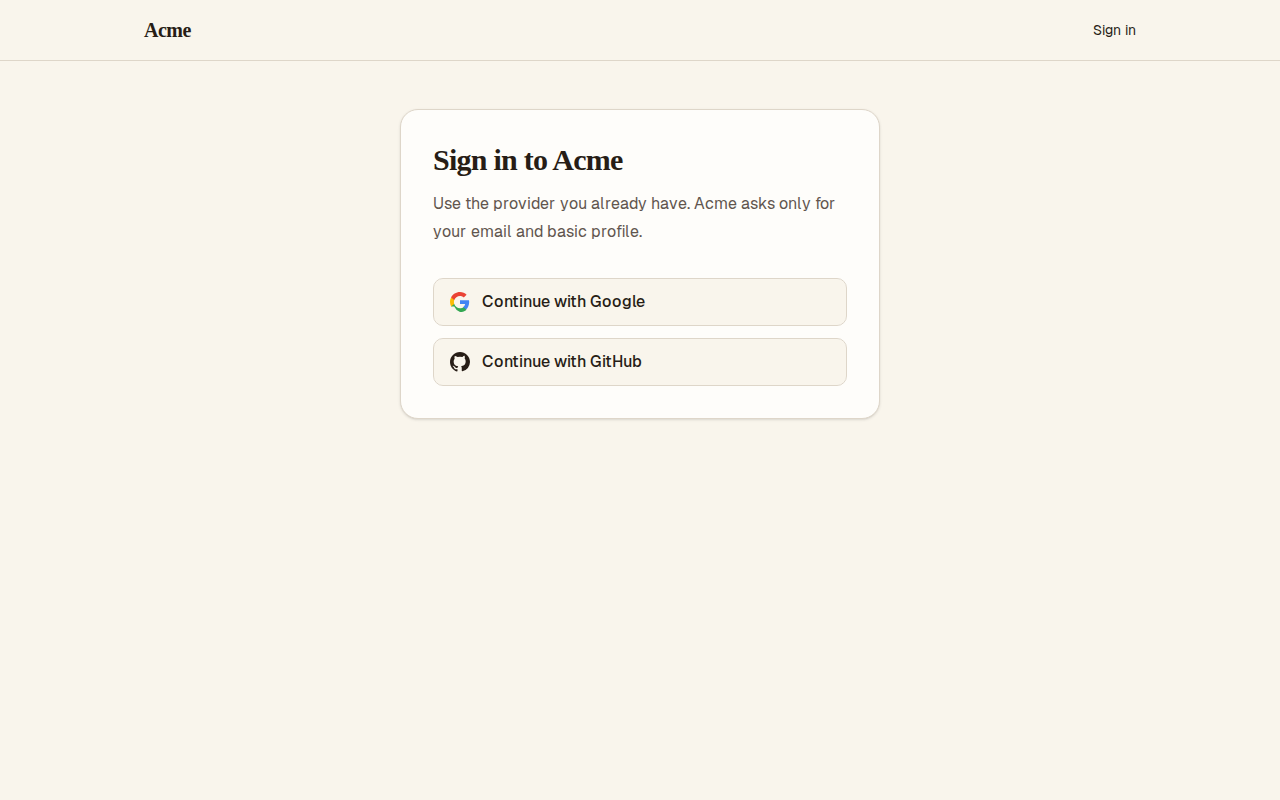
- The address leads to a page on the web app. A person who is not signed in signs in first and is brought back.
- The page shows the user code, the machine's name as the tool reported it, and the words "Only approve this if you just ran
acme loginyourself." - The person approves or refuses. Either can be done once.
- A code typed by hand is accepted in any case, with or without the hyphen.
- After 5 wrong codes in a minute from one account or IP address, the page refuses further tries for 10 minutes.
Accept when: approving lets the waiting tool sign in as that person, refusing ends it, and the sixth wrong code is refused.
R3. Wait
- The tool asks the server every 5 seconds whether the code was approved.
- The answers are
authorization_pending,slow_down,access_denied,expired_token, or a token. - A tool that asks more often than it was told gets
slow_downand must add 5 seconds to its wait. - A device code gives a token once. Asking again with it is refused.
- The tool stops with a clear message when the code is refused or runs out, and on Ctrl-C.
Accept when: each answer leads to the right message and exit code, and a second request with a used device code is refused.
R4. Tokens
- A token is 32 random bytes behind the prefix
acme_cli_. The server stores only a hash of it. - A token lasts
token_daysdays and then stops working. - The web app has a page that lists a person's tokens: machine name, when it was made, when and from where it was last used. Any can be revoked there.
- API requests carry the token as
Authorization: Bearer TOKEN.
Accept when: a revoked or expired token gets 401 on its next request, and one person never sees another person's tokens.
R5. Keep the token on the machine
- The tool stores the token in the system's keychain: Keychain on macOS, Credential Manager on Windows, the Secret Service on Linux.
- Where there is no keychain, it stores the token in a file in the user's configuration folder, readable by that user alone, and says so once.
- The token is never printed, never passed as a command-line argument, and never written to a log.
Accept when: after
acme loginthe token is in the keychain and in no file, and on a machine without a keychain the file's permissions allow its owner alone.R6. Use, check and sign out
acme whoamiprints the email address of the signed-in person and when the token expires.- Any command that gets 401 prints "Not signed in. Run
acme login." and exits with code 2. acme logoutrevokes the token on the server and removes it from the machine. If the server cannot be reached it still removes it from the machine, and says the token may still be valid until it is revoked on the website.
Accept when: after
acme logoutthe old token gets 401, and with the network down the token is still removed from the machine.R7. Tokens for automation
Only if
ci_tokensis on.- A person can make a token on the tokens page, with a name. It is shown once.
- When the environment variable
ACME_TOKENis set, the tool uses it and ignores the keychain.acme whoamisays the token came from the environment. acme loginrefuses to run while the variable is set, and says why.
Accept when: with the variable set, commands run as the token's owner without a keychain, and
acme loginrefuses.R8. Pages
- The approval page, the page after approving or refusing, and the tokens page.
Accept when: each page works with a keyboard alone and at a 360 pixel wide screen.
Definition of done
- Every acceptance check above has an automated test, and all tests pass. Tests of the tool run against a local server and a stand-in keychain.
- A README explains the commands, where the token is kept on each system, and how to run the tests.
# Sign-in for a command-line tool

## What this builds

Sign-in for a command-line tool that talks to a web app. The person types
`acme login`, approves a short code in their browser, and the tool is signed in.
No password is ever typed into a terminal. The tool keeps its token in the system
keychain and can be signed out from either side.

Read `spekkr.inputs.json` first. The command is called `cli_name`; this file
writes `acme`. A token lasts `token_days` days. `open_browser` changes R1 and
`ci_tokens` decides whether R7 exists.

The spec has two halves: routes and pages added to the web app, and the commands in
the tool. It needs the web app to know who is signed in. It does not build that.

## Out of scope

- Sign-in for anything but the app's own tool. This is not an OAuth server for
  other people's programs.
- The rest of the tool's commands.

## Requirements

Each requirement has an id. Tests name the id they cover.

### R1. Start

- `acme login` asks the server for a device code and a user code, and prints the
  address to open and the user code.
- The user code is 8 letters from `BCDFGHJKLMNPQRSTVWXZ`, shown as `XXXX-XXXX`. The
  device code is 32 random bytes and is never shown.
- Both stop working after 10 minutes.
- If `open_browser` is on, the tool also tries to open the address with the code
  filled in. With `--no-browser`, or when there is no display, it only prints.
- At most 10 sign-ins can be started from one IP address in 10 minutes.

Accept when: the printed address opens the approval page, and nothing printed or
logged contains the device code.

### R2. Approve

- The address leads to a page on the web app. A person who is not signed in signs
  in first and is brought back.
- The page shows the user code, the machine's name as the tool reported it, and
  the words "Only approve this if you just ran `acme login` yourself."
- The person approves or refuses. Either can be done once.
- A code typed by hand is accepted in any case, with or without the hyphen.
- After 5 wrong codes in a minute from one account or IP address, the page refuses
  further tries for 10 minutes.

Accept when: approving lets the waiting tool sign in as that person, refusing ends
it, and the sixth wrong code is refused.

### R3. Wait

- The tool asks the server every 5 seconds whether the code was approved.
- The answers are `authorization_pending`, `slow_down`, `access_denied`,
  `expired_token`, or a token.
- A tool that asks more often than it was told gets `slow_down` and must add 5
  seconds to its wait.
- A device code gives a token once. Asking again with it is refused.
- The tool stops with a clear message when the code is refused or runs out, and on
  Ctrl-C.

Accept when: each answer leads to the right message and exit code, and a second
request with a used device code is refused.

### R4. Tokens

- A token is 32 random bytes behind the prefix `acme_cli_`. The server stores only
  a hash of it.
- A token lasts `token_days` days and then stops working.
- The web app has a page that lists a person's tokens: machine name, when it was
  made, when and from where it was last used. Any can be revoked there.
- API requests carry the token as `Authorization: Bearer TOKEN`.

Accept when: a revoked or expired token gets 401 on its next request, and one
person never sees another person's tokens.

### R5. Keep the token on the machine

- The tool stores the token in the system's keychain: Keychain on macOS,
  Credential Manager on Windows, the Secret Service on Linux.
- Where there is no keychain, it stores the token in a file in the user's
  configuration folder, readable by that user alone, and says so once.
- The token is never printed, never passed as a command-line argument, and never
  written to a log.

Accept when: after `acme login` the token is in the keychain and in no file, and on
a machine without a keychain the file's permissions allow its owner alone.

### R6. Use, check and sign out

- `acme whoami` prints the email address of the signed-in person and when the
  token expires.
- Any command that gets 401 prints "Not signed in. Run `acme login`." and exits
  with code 2.
- `acme logout` revokes the token on the server and removes it from the machine.
  If the server cannot be reached it still removes it from the machine, and says
  the token may still be valid until it is revoked on the website.

Accept when: after `acme logout` the old token gets 401, and with the network down
the token is still removed from the machine.

### R7. Tokens for automation

Only if `ci_tokens` is on.

- A person can make a token on the tokens page, with a name. It is shown once.
- When the environment variable `ACME_TOKEN` is set, the tool uses it and ignores
  the keychain. `acme whoami` says the token came from the environment.
- `acme login` refuses to run while the variable is set, and says why.

Accept when: with the variable set, commands run as the token's owner without a
keychain, and `acme login` refuses.

### R8. Pages

- The approval page, the page after approving or refusing, and the tokens page.

Accept when: each page works with a keyboard alone and at a 360 pixel wide screen.

## Definition of done

- Every acceptance check above has an automated test, and all tests pass. Tests of
  the tool run against a local server and a stand-in keychain.
- A README explains the commands, where the token is kept on each system, and how
  to run the tests.
-
design.mdData model, rules and flows.Design
This file fixes the parts that are easy to get wrong. Choose the language and framework that fit the person's project; nothing here depends on them. Write the tool in the language the rest of the tool is in.
Names
Everything is named after the
cli_nameinput. Withacme: the command isacme, the token prefix isacme_cli_, the environment variable isACME_TOKEN, and the keychain entry is the serviceacmewith the accountdefault.Data model
Use the database in the
databaseinput.Table Columns cli_device_codesid,device_code_hash(unique),user_code(unique),machine_name,ip,state,user_id,last_polled_at,interval,expires_atcli_tokensid,user_id,token_hash(unique),name,kind(deviceormanual),created_at,last_used_at,last_used_ip,expires_at,revoked_atstateis one ofpending,approved,deniedandused.The exchange
This follows the OAuth 2.0 device authorization grant, RFC 8628.
POST /cli/devicewith the machine's name answers:{ "device_code": "…", "user_code": "BDFH-KMPR", "verification_uri": "https://app.example/cli", "verification_uri_complete": "https://app.example/cli?code=BDFH-KMPR", "expires_in": 600, "interval": 5 }POST /cli/tokenwith the device code answers status 200 with{ "token": "…", "expires_at": "…" }, or status 400 with{ "error": "authorization_pending" }and the other errors in R3.Rules:
- Store device codes and tokens as SHA-256 hashes. They are random and long.
- The user code has 20 to the power 8 possible values. That is only safe together with the 10 minute life and the limit on wrong tries. Keep both.
- Moving a code from
approvedtousedand creating the token is one transaction, so two requests cannot both get a token. slow_down: if a request comes less thanintervalseconds afterlast_polled_at, add 5 tointervaland answerslow_down.- The machine's name comes from the tool and can be anything. Show it as a claim, escape it, and cut it to 100 characters.
- The approval page changes nothing on
GET. Approving and refusing arePOSTwith the app's usual CSRF protection.
The tool
- Find the keychain through a maintained library for the language. Do not shell out to system commands with the token on the command line.
- The fallback file is
credentials.jsonin the user's configuration folder, in a folder named after the command, created with permissions0600on systems that have them. - Decide "no display" this way: on Linux, neither
DISPLAYnorWAYLAND_DISPLAYis set; anywhere, the variableSSH_CONNECTIONis set. - Exit codes: 0 for success, 1 for an error, 2 for not signed in, 130 for Ctrl-C.
- Take the server's address from one setting, so tests can point the tool at a local server.
Configuration
Secret Purpose DATABASE_URLConnection string for the chosen database. Named here
- A device code that was already used, or that the server never issued, is answered
invalid_grant. - The server's address is read from
<NAME>_SERVER, where<NAME>iscli_namein capitals. - The 32 random bytes of a token are written in base64url, 43 characters.
What this spec leaves to you
Where this spec names something, use that name, so that two builds of it agree. Where it does not, the choice is yours. List what you chose in the README.
# Design This file fixes the parts that are easy to get wrong. Choose the language and framework that fit the person's project; nothing here depends on them. Write the tool in the language the rest of the tool is in. ## Names Everything is named after the `cli_name` input. With `acme`: the command is `acme`, the token prefix is `acme_cli_`, the environment variable is `ACME_TOKEN`, and the keychain entry is the service `acme` with the account `default`. ## Data model Use the database in the `database` input. | Table | Columns | | --- | --- | | `cli_device_codes` | `id`, `device_code_hash` (unique), `user_code` (unique), `machine_name`, `ip`, `state`, `user_id`, `last_polled_at`, `interval`, `expires_at` | | `cli_tokens` | `id`, `user_id`, `token_hash` (unique), `name`, `kind` (`device` or `manual`), `created_at`, `last_used_at`, `last_used_ip`, `expires_at`, `revoked_at` | `state` is one of `pending`, `approved`, `denied` and `used`. ## The exchange This follows the OAuth 2.0 device authorization grant, RFC 8628. `POST /cli/device` with the machine's name answers: ```json { "device_code": "…", "user_code": "BDFH-KMPR", "verification_uri": "https://app.example/cli", "verification_uri_complete": "https://app.example/cli?code=BDFH-KMPR", "expires_in": 600, "interval": 5 } ``` `POST /cli/token` with the device code answers status 200 with `{ "token": "…", "expires_at": "…" }`, or status 400 with `{ "error": "authorization_pending" }` and the other errors in R3. Rules: - Store device codes and tokens as SHA-256 hashes. They are random and long. - The user code has 20 to the power 8 possible values. That is only safe together with the 10 minute life and the limit on wrong tries. Keep both. - Moving a code from `approved` to `used` and creating the token is one transaction, so two requests cannot both get a token. - `slow_down`: if a request comes less than `interval` seconds after `last_polled_at`, add 5 to `interval` and answer `slow_down`. - The machine's name comes from the tool and can be anything. Show it as a claim, escape it, and cut it to 100 characters. - The approval page changes nothing on `GET`. Approving and refusing are `POST` with the app's usual CSRF protection. ## The tool - Find the keychain through a maintained library for the language. Do not shell out to system commands with the token on the command line. - The fallback file is `credentials.json` in the user's configuration folder, in a folder named after the command, created with permissions `0600` on systems that have them. - Decide "no display" this way: on Linux, neither `DISPLAY` nor `WAYLAND_DISPLAY` is set; anywhere, the variable `SSH_CONNECTION` is set. - Exit codes: 0 for success, 1 for an error, 2 for not signed in, 130 for Ctrl-C. - Take the server's address from one setting, so tests can point the tool at a local server. ## Configuration | Secret | Purpose | | --- | --- | | `DATABASE_URL` | Connection string for the chosen database. | ## Named here - A device code that was already used, or that the server never issued, is answered `invalid_grant`. - The server's address is read from `<NAME>_SERVER`, where `<NAME>` is `cli_name` in capitals. - The 32 random bytes of a token are written in base64url, 43 characters. ## What this spec leaves to you Where this spec names something, use that name, so that two builds of it agree. Where it does not, the choice is yours. List what you chose in the README. -
tasks.mdBuild tasks in order, each with a check.Tasks
Work in order. Finish a task's check before starting the next.
- Set up. Add the tables in
design.mdto the web app. If there is no app yet, build the smallest one: a signed-in user and one API route to call. If there is no tool yet, build one with a single command that calls that route. Check: migrations run from empty, and the tool's command reaches the route. - Start (R1). The server route and the first half of
login, named after thecli_nameinput. Honouropen_browser. Check: the R1 acceptance tests pass. - Approve (R2). The page and its two actions. Check: the R2 acceptance tests pass.
- Wait (R3). The token route and the tool's loop, with a clock that tests can set. Check: the R3 acceptance tests pass.
- Tokens (R4). Checking a token on API requests, expiry from the
token_daysinput, and the tokens page. Check: the R4 acceptance tests pass. - Keep the token (R5). Keychain and fallback file. Check: the R5 acceptance tests pass with a stand-in keychain.
- Use and sign out (R6). Check: the R6 acceptance tests pass.
- Automation (R7). Only if
ci_tokensis on. Check: the R7 acceptance tests pass. - Pages (R8). Check: every page can be used with a keyboard alone and at 360 pixels wide.
- Finish. Write the README and run the whole test suite. Check: every item under "Definition of done" in
spec.mdis true.
# Tasks Work in order. Finish a task's check before starting the next. 1. **Set up.** Add the tables in `design.md` to the web app. If there is no app yet, build the smallest one: a signed-in user and one API route to call. If there is no tool yet, build one with a single command that calls that route. Check: migrations run from empty, and the tool's command reaches the route. 2. **Start (R1).** The server route and the first half of `login`, named after the `cli_name` input. Honour `open_browser`. Check: the R1 acceptance tests pass. 3. **Approve (R2).** The page and its two actions. Check: the R2 acceptance tests pass. 4. **Wait (R3).** The token route and the tool's loop, with a clock that tests can set. Check: the R3 acceptance tests pass. 5. **Tokens (R4).** Checking a token on API requests, expiry from the `token_days` input, and the tokens page. Check: the R4 acceptance tests pass. 6. **Keep the token (R5).** Keychain and fallback file. Check: the R5 acceptance tests pass with a stand-in keychain. 7. **Use and sign out (R6).** Check: the R6 acceptance tests pass. 8. **Automation (R7).** Only if `ci_tokens` is on. Check: the R7 acceptance tests pass. 9. **Pages (R8).** Check: every page can be used with a keyboard alone and at 360 pixels wide. 10. **Finish.** Write the README and run the whole test suite. Check: every item under "Definition of done" in `spec.md` is true. - Set up. Add the tables in
Is it for me?
- Kind
- app part
- Platforms
- cli, backend, web
What does it need?
- Agent permissions
- shell, network
- Secrets it reads
DATABASE_URL
What changed?
- 0.1.215 Nov 2026Names what it builds.
- 0.1.114 Nov 2026Says "person" where it said "buyer".
- 0.1.014 Nov 2026Moved from dwrtz/cli-sign-in.
For agents: start.md says how to build this spec, spec.json holds everything on this page, and bundle.tar.gz holds its files.